

354,321
Views
Beginner
Level
20
Comments
Crash Course: Let's Make a Game! (Part 4)
by Jon (Updated on 2015-10-17)
Part 1 (Intro) - Part 2 (Resources) - Part 3 (Actors) - Part 4 (Create a Scene) - Part 5 (Test your Game)
Creating a Scene (Part 4 of 5)
Now that we have our resources in place and our Actor Types configured, we're going to create a Scene.
Definition: Scenes are game levels that get populated with the tiles and Actors we've created. You can even attach Behaviors to Scenes, although we won't be doing so in this tutorial.
Creating a New Scene
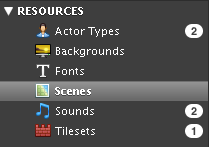
1) From the Dashboard, click the Scenes category, followed by the large dashed rectangle that reads, “This game contains no Scenes. Click here to create one.”

2) The Create New Scene dialog will appear. Enter a name of your choosing.
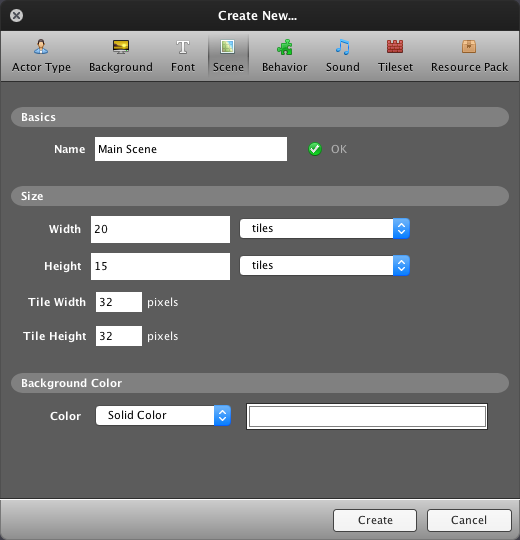
3) Make note of the Tile Width and Tile Height fields. It’s imperative for these to be consistent with the tilesize of the tilesets you’re using. Our tileset’s tilesize is 32x32, so we’ll leave these fields unchanged.

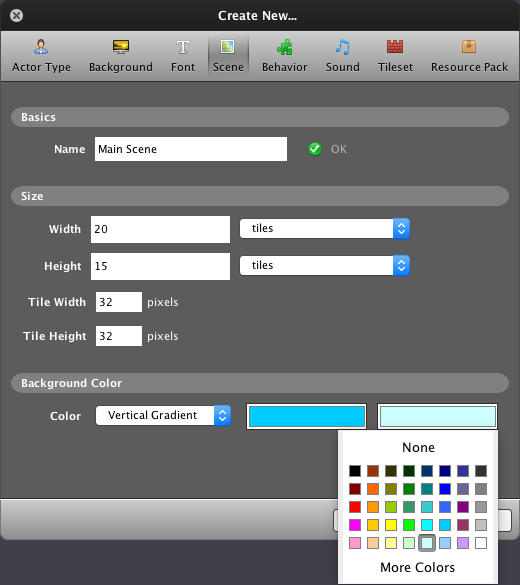
4) Let’s have Stencyl generate a sky background for us by clicking in the Color dropdown and selecting Vertical Gradient. Select two colors by clicking inside the white boxes and then clicking on the desired colors. The first box represents the starting color at the top of the screen and the second box represents the color it shifts to as it approaches the bottom of the screen.
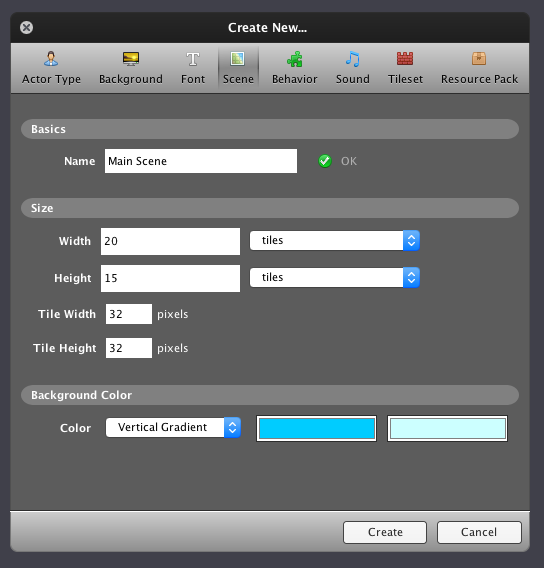
5) When you’re all finished, the dialog should look something like the image below. Click Create when you’re finished.
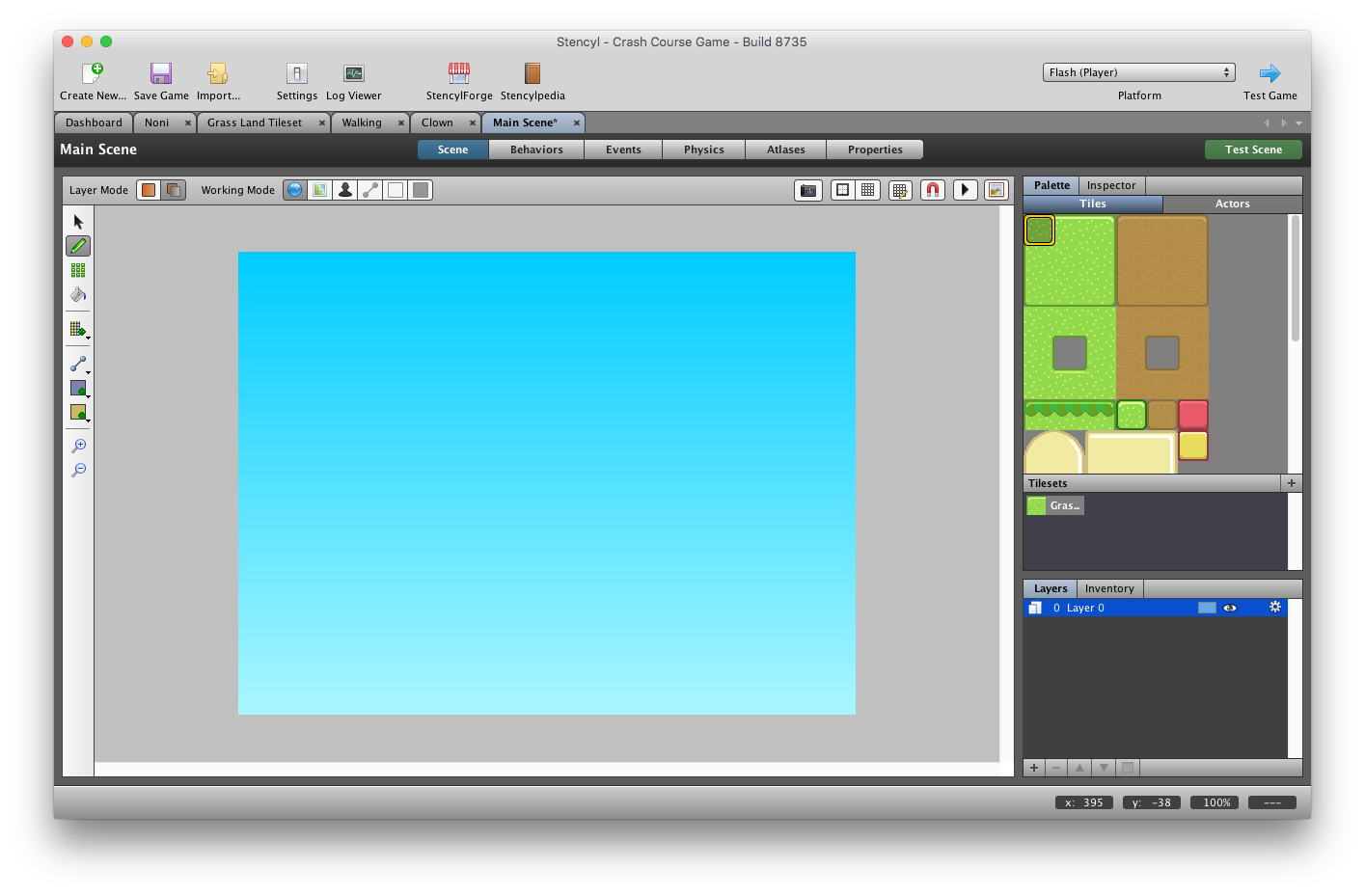
6) The Scene Designer will open. The interface may remind you of some popular 2D art programs, and it works quite similarly.
Placing Tiles
Let’s add some tiles to our Scene. They’ll form the ground that our characters will stand on.
1) First, make sure that the Pencil Tool is selected from the toolbar on the left-hand side of the canvas.

2) Click on the upper left-hand grass tile in the Tiles section of the Palette (on the right side of the screen, by default).

3) Place it in the bottom left-hand corner of the Scene by left-clicking.

4) Next, select the middle grass tile in the top row of the Palette.
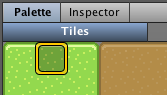
5) With the left mouse button held down, click and drag to fill the bottom row, leaving just a single spot in the corner.

6) Now select the right-most grass tile in the same row of the Palette.
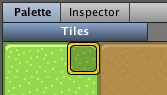
7) Place it in the remaining empty spot of the Scene’s bottom row.

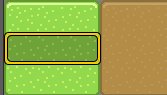
Tip: When you select tiles to place, if you choose more than one tile in the Palette at a time, you can place the group of tiles you selected. See the screenshot below.
Placing Actors
Now we get to add Noni and Clown to the Scene.
1) Click on the Actors button in the Palette and select Noni.
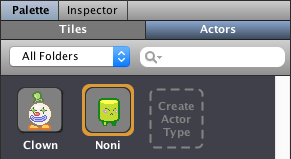
If you move your mouse over the Scene, you’ll notice that Noni follows the cursor. Left-click near the ground to place it in the scene.
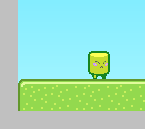
Tip: If you hold down the Shift key, you can snap the Actor to the grid.
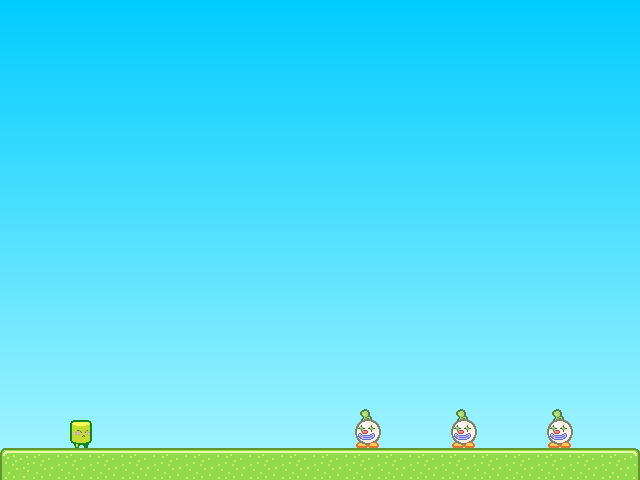
2) Now do the same thing with Clown. Place a few in the Scene.
Your final scene may look something like this:
Adding Gravity
Now we just need to make sure our actors fall to the ground when they're in the air. Go to the Physics page by pressing the Physics button at the top of the editor. In the Vertical Gravity section, type in “85”.

As you'd expect, higher values will result in stronger gravity, and lower values will result in lower gravity.
Print Article Edit Article How to Edit an Article
20 Comments

Hi people, you can see full tutorial of crash course 1 in this link https://youtu.be/EaBTKlhSK5M.. Enjoy
1

Whenever I place the clowns then test the game, they just fall through the ground! Could use some help, can't figure out why this happens!
2

Update: Since the actor wasn't falling through the floor, and was able to walk for a moment before the game reloads, I didn't think this would work, but I deactivated the fall into a pit and die behavior, and the game works properly without resetting in a loop. Errr. Why would this happen?
0
So I followed everything to a T, and when I compile and test the fame, the scene constantly fades to black and then reloads in an endless loop. My guess is that it thinks the actor is falling through the floor? However, everything loads on the solid ground tiles I placed, and I'm able to move the actor for a second and even jump before it reloads the scene. Even holding still it reloads. Any ideas...?
3


If Noni is falling through the ground, make sure that he has been assigned to the "Players" group. For help, see Part 3 of this tutorial.
1

When I test the scene, Noni falls through the tiles and dies. Then I go into a loop because Noni dies, the scene restarts and Noni falls and dies again, and so on... How do I get him to stop on the land?
1

When I test the scene, Noni falls through the tile "ground" and dies. Then I go into a loop because Noni dies, the scene restarts and Noni falls and dies again, and so on... How do I get him to stop on the land?
1

when i click on my scene with a tile , it is not getting placed on the scene ... what should i do ??
-1


==ANNOUNCEMENT==
We have completely rewritten this Crash Course to make it clearer and followable from start to finish. In order to avoid confusion, we have cleared out the comments for the old crash course.
0


