

1,886,718
Views
Beginner
Level
77
Comments
Crash Course: Let's Make a Game!
by Jon (Updated on 2015-11-04)
Part 1 (Intro) - Part 2 (Resources) - Part 3 (Actors) - Part 4 (Create a Scene) - Part 5 (Test your Game)
Introduction
This short, hands-on tutorial will walk you through the steps needed to create a simple platformer using pre-made content, so that you can become familiar with the main parts of Stencyl’s interface.
Make sure you download and install Stencyl 3.4.0 (or later) before starting the crash course. This new crash course will not work in 3.3.0 or earlier.
Download the Crash Course Kit
This Crash Course requires the Crash Course Kit, which can be downloaded here.
How to Install the Crash Course Kit
Method 1: Drag and Drop
To install the kit, drag the file into Stencyl, like displayed below.

Method 2: Use the Menu
Alternatively, you can import it from the File menu (File > Import Game…).
Create a New Game (Part 1 of 5)
Welcome Center
When you open Stencyl, you’ll see a screen that looks something like this.
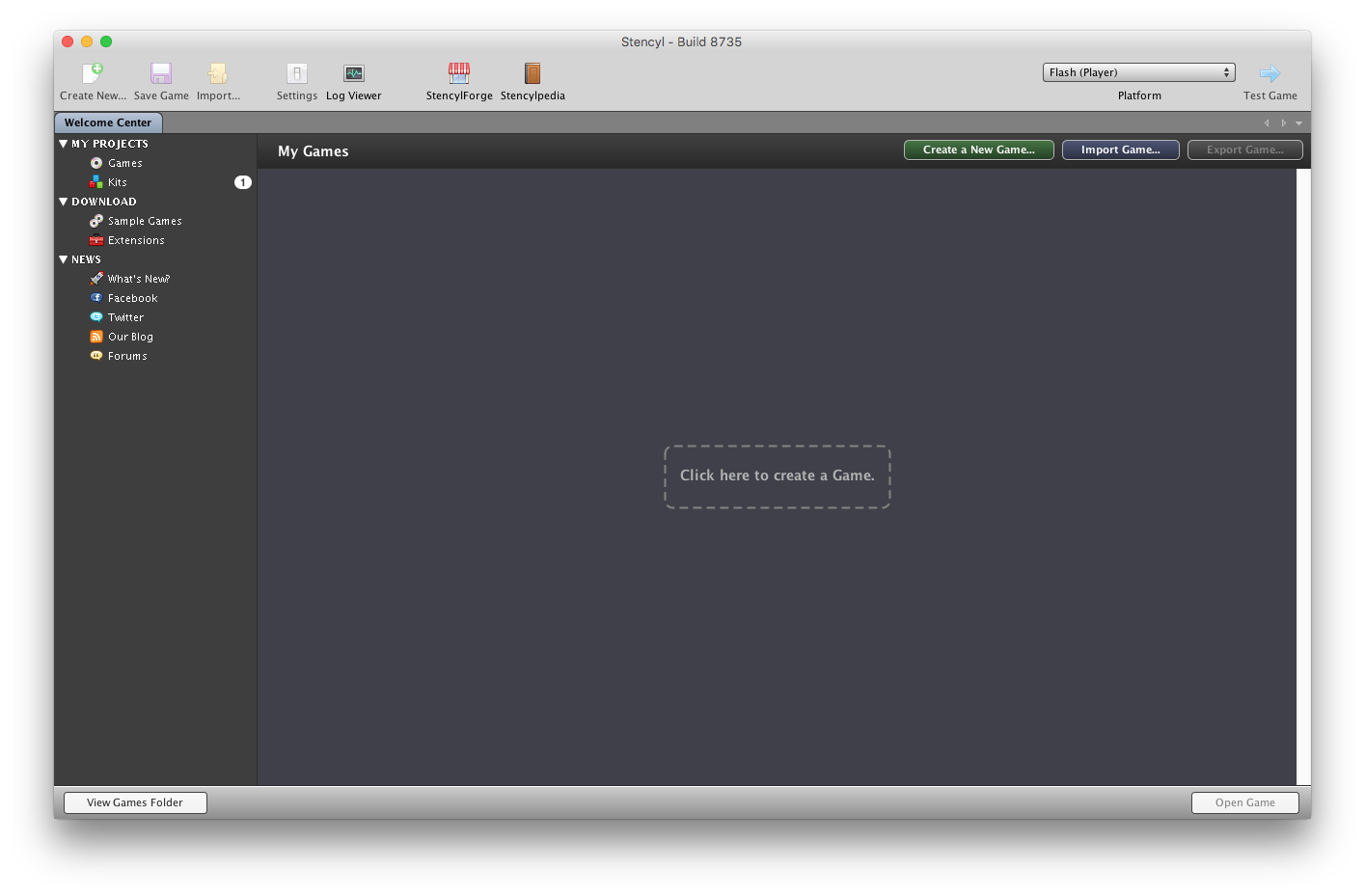
This is the Welcome Center. From here, you can either create a new game or open an existing game.
Creating a New Game
-
Click the dotted rectangle labeled "Click here to create a Game".
-
Click on the Crash Course Kit, then click the Next button at the bottom of the dialog.
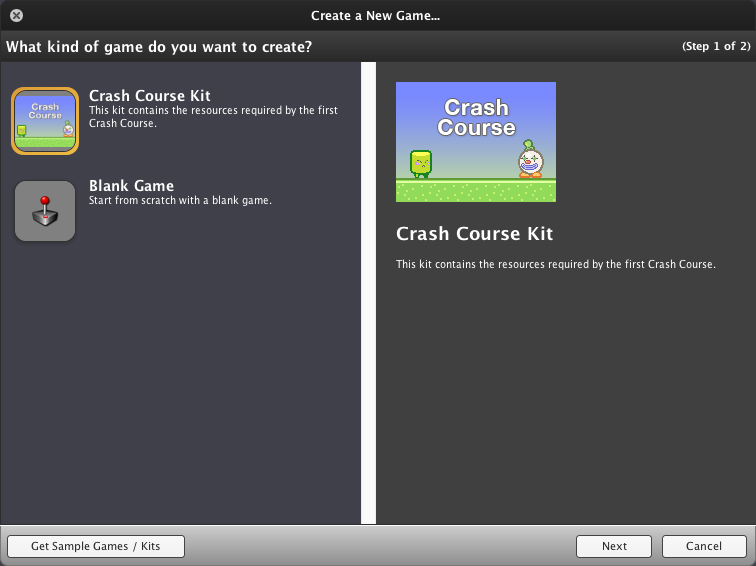
What are Kits? Often times when you create a game in Stencyl, you’ll want to start with a Kit. A kit is a game template that comes with pre-made resources, settings and game logic. The kit you’re starting with here has all the resources you’ll need for the Crash Course.
-
Next, you’ll see a dialog pop up where you can set the game window’s size (in pixels) and name your game.
We’re going to name it "Crash Course Game", though feel free to name it whatever you’d like.
By setting the Width and Height dimensions in the Screen Size section, you are determining the size of the window/view that the player will see when he or she plays your game. In this case, let’s go with a Width of 640 and a Height of 480.
Click the Create button.
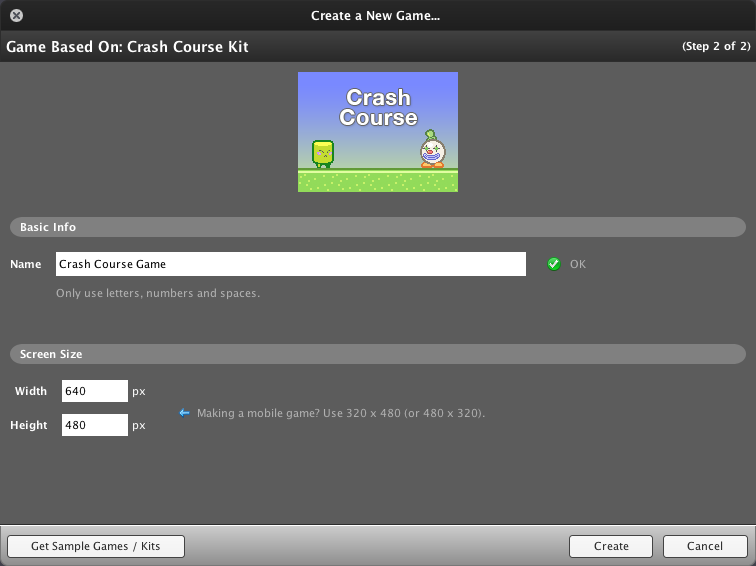
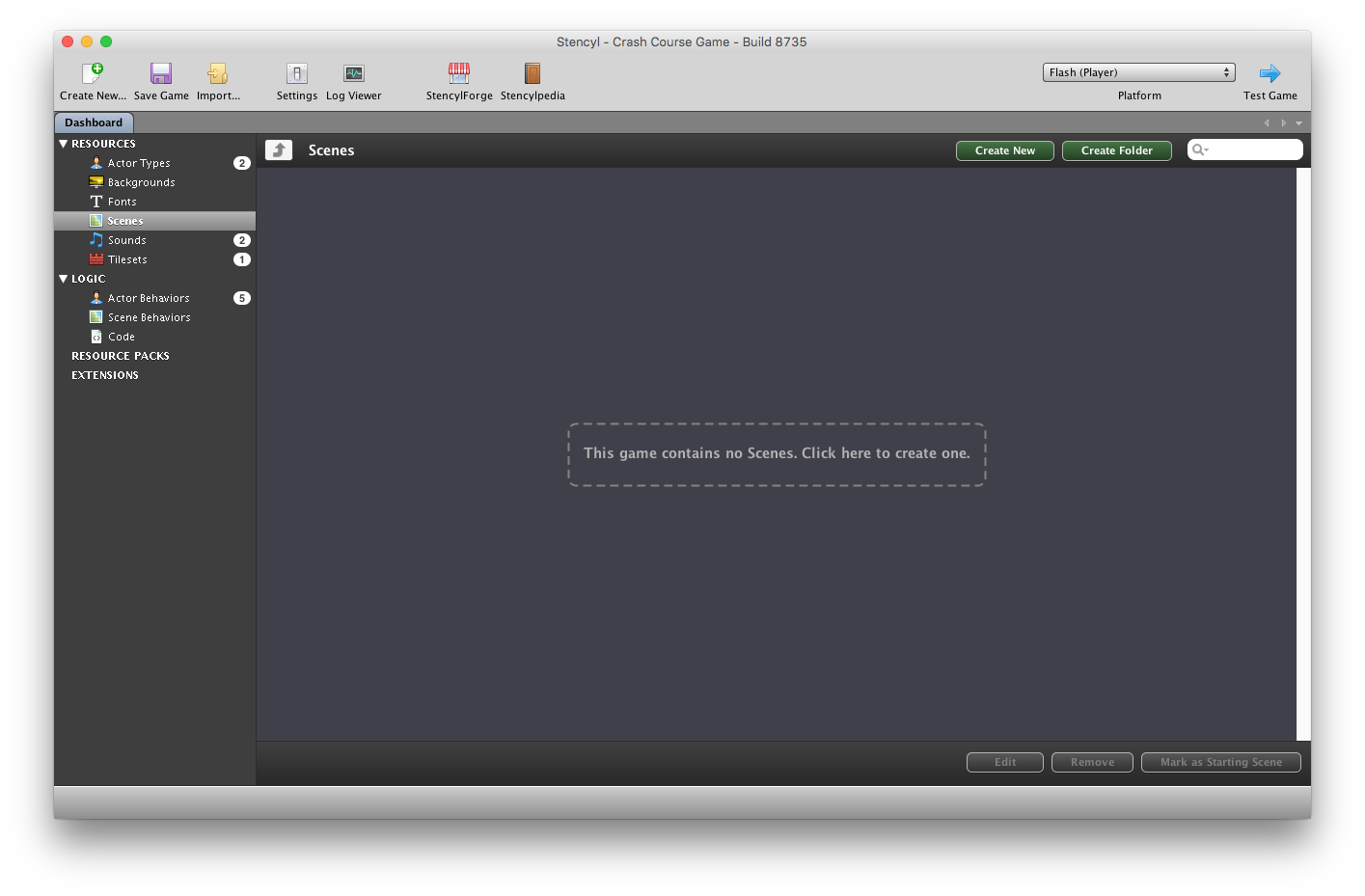
- You’ll now be taken to the Dashboard, a central area where you can see and open your game’s resources (actors, graphics, sounds, game logic, etc).
Print Article Edit Article How to Edit an Article
77 Comments


Bro, I'm on a chromebook, not a mac, not a windows, not even a linux. I just wanna create a game or two
-1


Hi! I'm also a new user like the previous poster who asked about the update. I think it may be because this Crash Course was made for a slightly older version of Stencyl.
All you have to do is click Upgrade and Continue in the popup. I just completed the Crash Course (it's July 2023 right now), and there were no problems. So it should still work.
1

Hey, I'm a new user, and when I tried to use the Crash Course file, it said that it needed to update to Version 4.0.4. I don't know how that will affect how I understand this tutorial, but I just wanted to let the chat know. Hopefully, this will not be an issue, and I will be able to learn the basics.
1


this application makes want to contract Aids and drink bleach, its that bad that it makes me want to kms. whoever created this app needs to get laid \
-4


I'm trying to make a pause script but I can never get it to unpause.
Can someone take a screenshot of a functional pause script and post it or tell me how to make one?
2

so if you try stencyl ,these crash courses provide assets for adobe flash player and adobe is not available anymore incase it comes back in the future these crash courses are great
1


